
Introduction
TradingView has become one of the most popular charting platforms for traders thanks to its clean interface, powerful charting tools, and extensive library of indicators. NinjaTrader, is one of the leading futures platforms.
By connecting NinjaTrader to TradingView, you can analyze the markets using TradingView’s charts while placing and managing trades directly through your NinjaTrader account. This setup allows you to combine the strengths of both platforms into one streamlined trading experience.
In this guide, we’ll walk through the complete process of connecting NinjaTrader to TradingView, explain the required subscriptions, and cover the most important trading features you’ll want to know once you’re connected.
Create Your NinjaTrader Account
The first step is creating a NinjaTrader account if you don’t already have one. Create account.
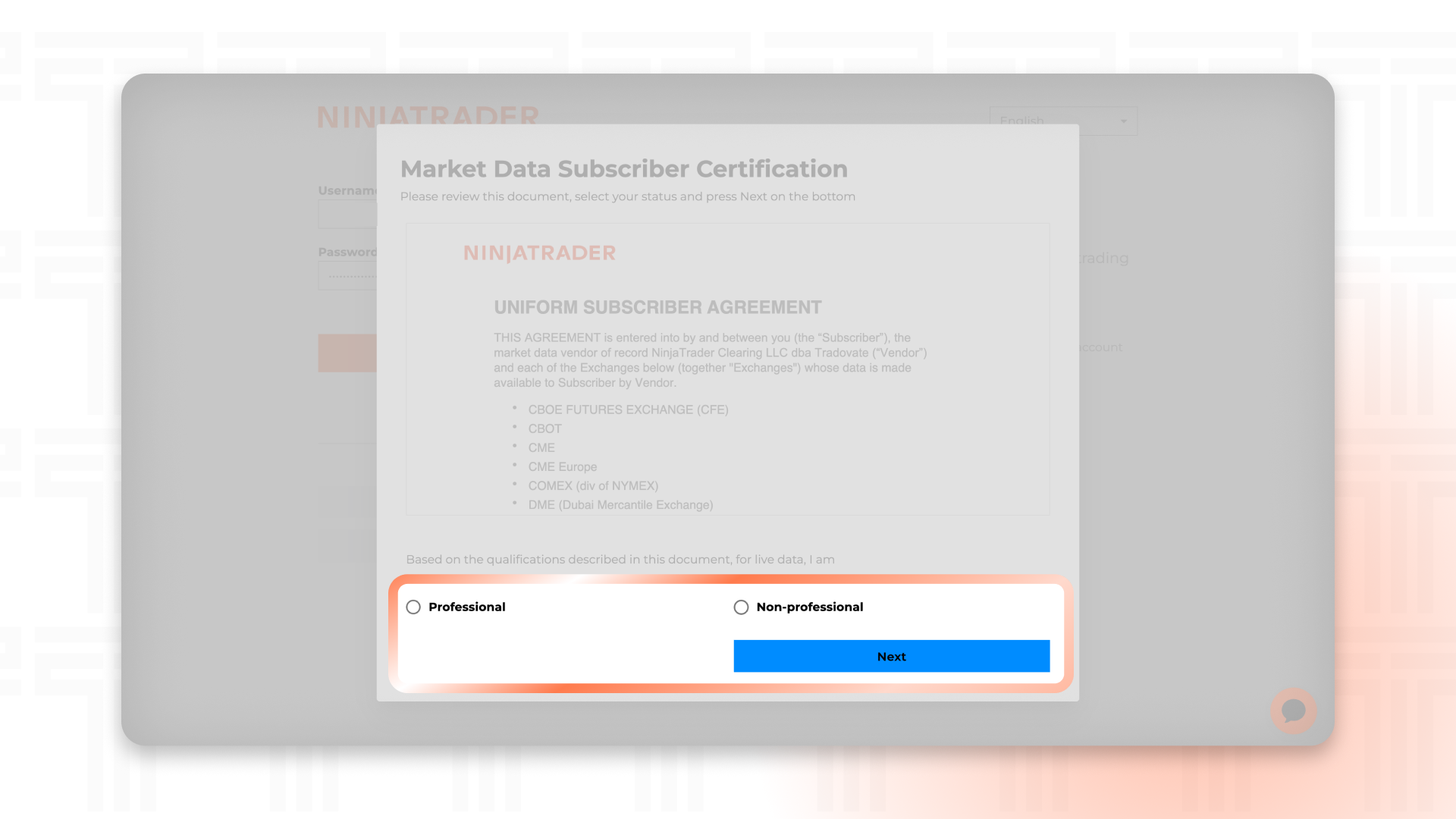
During the registration process, you’ll be asked whether you qualify as a professional or non-professional market data subscriber. Most retail traders will fall under the non-professional category, but it’s important to answer these questions accurately since market data providers have specific requirements.
Once your account has been approved, you’ll have access to the NinjaTrader platform, simulated trading, and a trial period of live market data. After the trial expires, you’ll need to subscribe to a market data package if you want to continue viewing real-time futures prices.
Subscribe to Market Data
Before TradingView can display live futures pricing through your NinjaTrader account, you’ll need an active market data subscription.
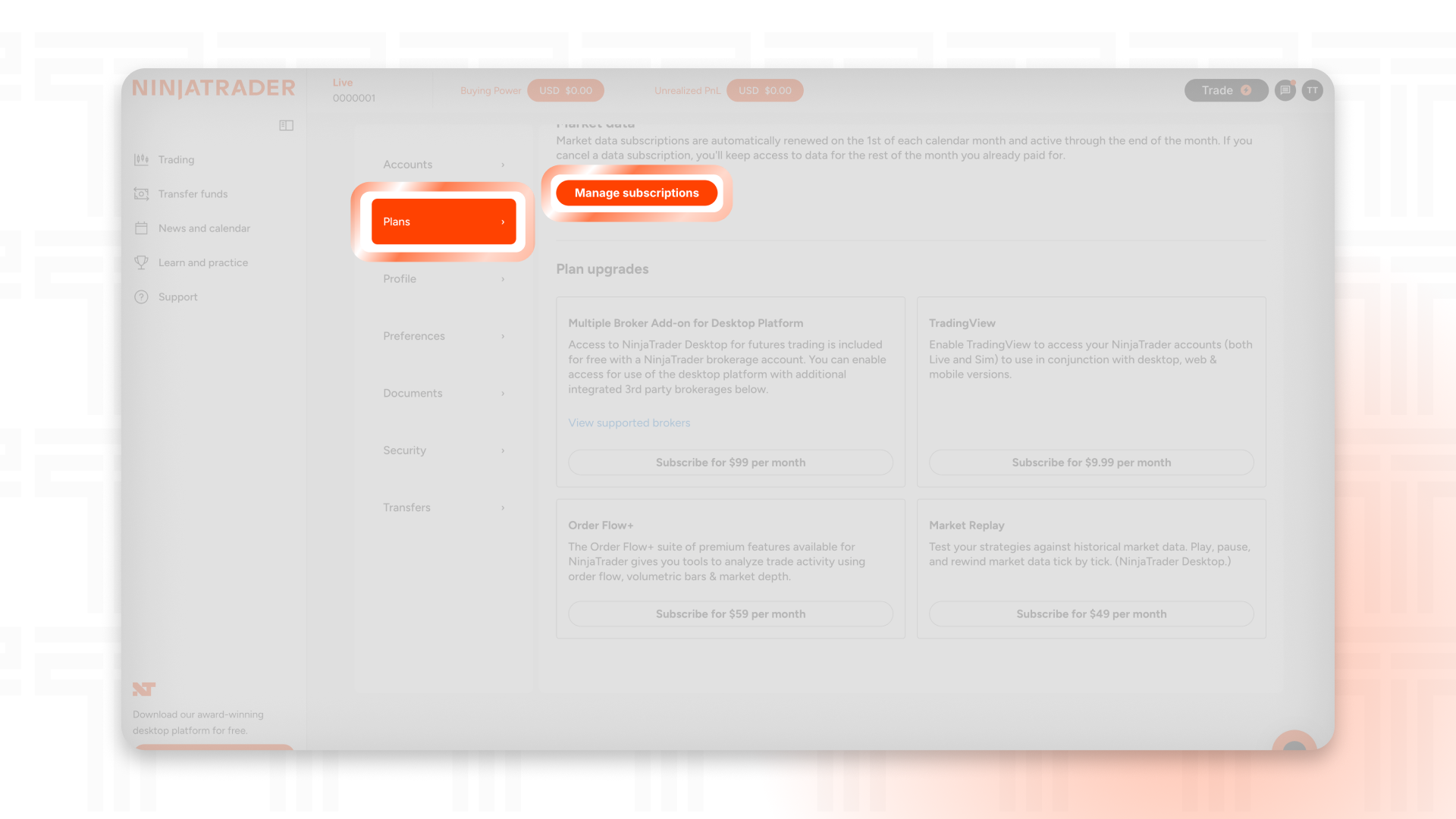
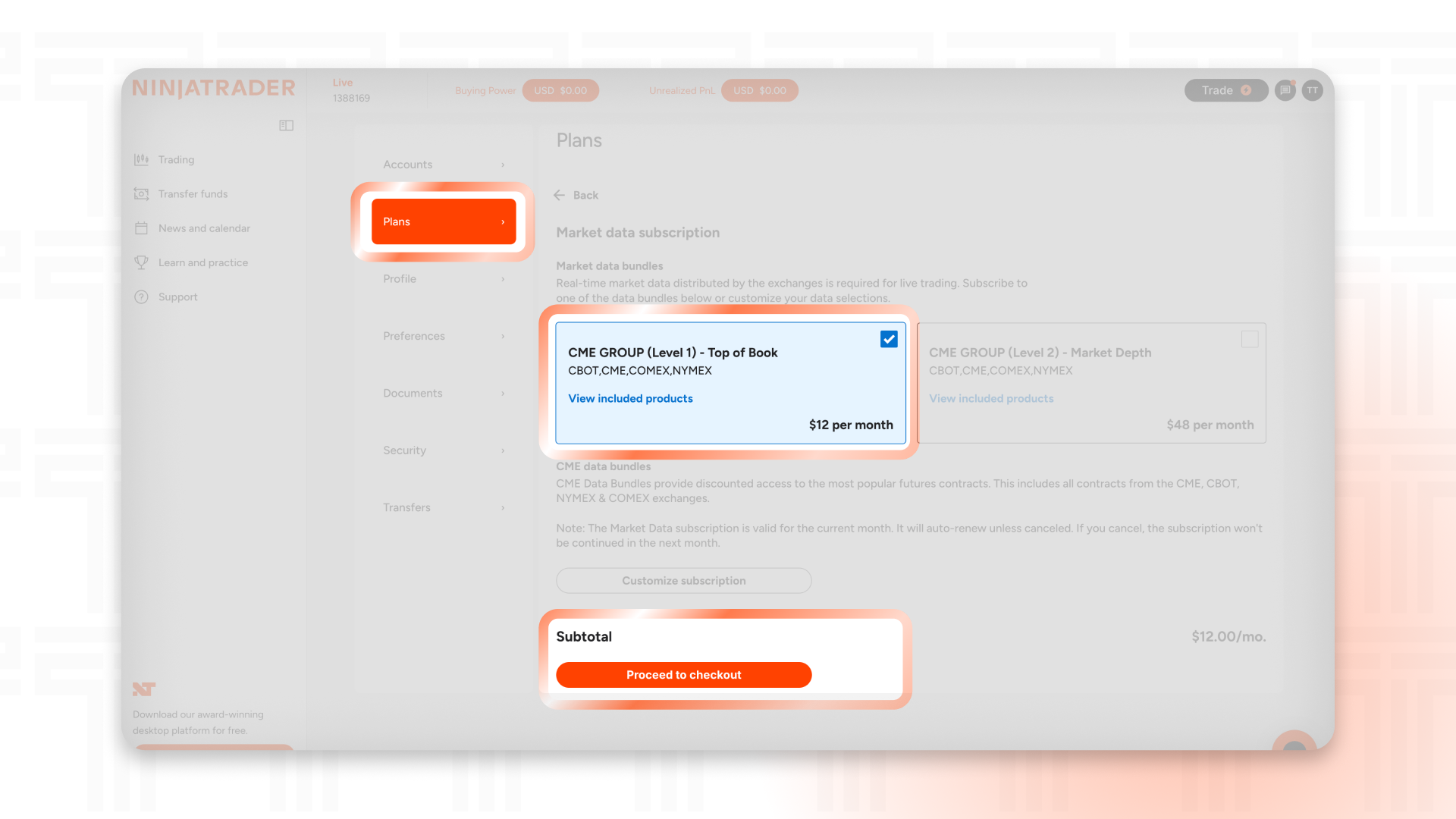
Inside your NinjaTrader account, navigate to the Settings menu and open the Plans section. From there, select Manage Subscriptions to view the available data packages.
For most traders, the CME Group Level 1 (Top of Book) package provides everything needed for charting and order execution. Traders who rely on order flow or depth of market tools may prefer a Level 2 subscription instead.
Enable the TradingView Integration
One of the most common reasons traders are unable to connect their accounts is because they skip the TradingView integration subscription.
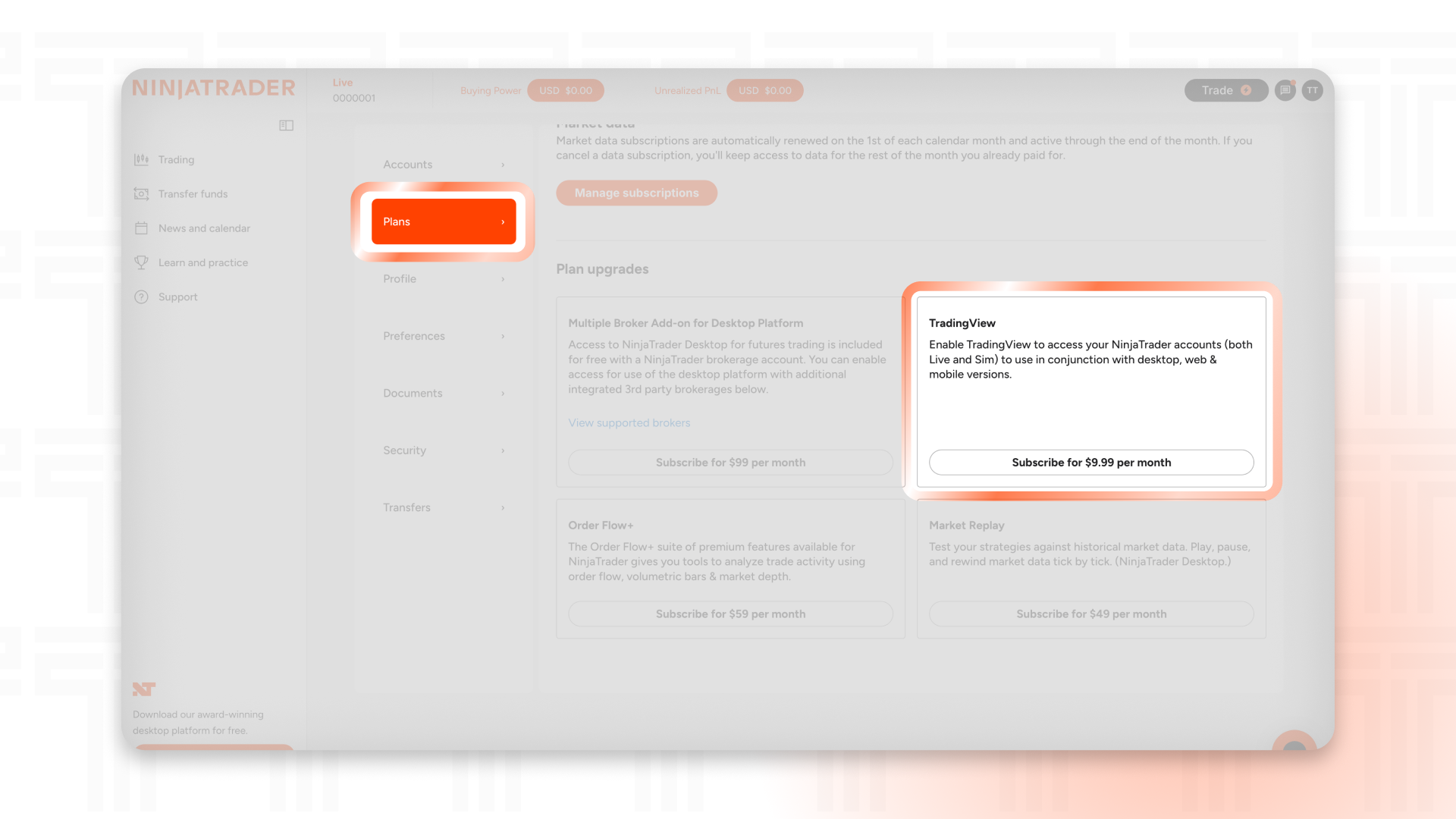
Inside the same Plans section of your NinjaTrader account, you’ll find the TradingView connection add-on. This subscription allows TradingView to connect with your NinjaTrader account.
Without this add-on, the connection between the two platforms will not work.
Once it’s active, you’re ready to connect your account inside TradingView.
Connect NinjaTrader to TradingView
Open TradingView and navigate to the Trading Panel.
Find NinjaTrader in the list of supported and select Connect. Enter your NinjaTrader login credentials and complete the sign-in process.
After logging in successfully, TradingView will display your connected brokerage account, allowing you to begin placing trades directly from TradingView.
Configure Your Trading Settings
Before placing your first trade, it’s worth spending a few minutes customizing your trading preferences.
TradingView allows you to configure several settings, including:
- Buy and sell buttons
- One-click trading
- Order confirmation windows
- Execution sounds
- Notification preferences
- Reverse position button
One-click trading can significantly speed up order entry, but it also removes the confirmation window before trades are placed. Make sure you’re comfortable with this feature before enabling it.
Understanding Order Types
TradingView supports the most commonly used order types for futures trading.
A market order executes immediately at the best available price. This is the fastest way to enter or exit a position but doesn’t guarantee a specific fill price.
A limit order allows you to specify the exact price where you want to buy or sell. The order will only execute if the market reaches that price.
A stop order becomes active once price reaches a predetermined level and is commonly used for stop losses or breakout entries.
Bracket Orders
When creating a order, you can define your entry price, stop loss, and take profit before submitting the order. As you move either bracket, TradingView automatically updates your projected profit and loss.
Understanding OCO Orders
Bracket orders use what’s known as an OCO order, which stands for One Cancels the Other.
Your stop loss and take profit remain linked together throughout the trade. If your take profit is filled, the stop loss is automatically canceled. Likewise, if your stop loss is triggered first, the take profit order is removed.
This ensures you aren’t left with unwanted working orders after your position has already been closed.
Risk-Based Position Sizing
One of the most useful features available in TradingView is the ability to size positions based on your desired dollar risk.
Instead of manually calculating contract size, you can simply enter the amount you’re willing to risk and position your stop loss where it belongs. TradingView will automatically determine the closest contract size available without going over that dollar amount.
Taking Partial Profits
Many traders prefer scaling out of winning positions rather than exiting all at once.
TradingView makes this process straightforward by allowing you to place limit orders for a portion of your position while keeping the remaining contracts open. You can also manually close part of your position using market orders if needed.
After taking partial profits, remember to adjust your stop loss so it matches your remaining position size.
Customize Your Trading Experience
TradingView offers several display options that can help keep your charts organized.
You can choose whether to display execution labels, filled order markers, profit and loss information, position lines, and other trading-related visuals. Many traders prefer hiding execution labels after a trading session to reduce clutter while reviewing charts.
Spend a few minutes experimenting with these settings until your workspace matches your personal preferences.
Final Thoughts
Connecting NinjaTrader to TradingView gives futures traders the ability to combine their favorite futures platform, with their favorite charting platform.